Affichage des articles dont le libellé est electronics. Afficher tous les articles

mercredi 1 juin 2016

Corsair K70 RGB

Design

The K70 RGB measures 18.6 x 8.3 inches, making it a bit bigger than its predecessor, the K70, which was 17.2 x 8.3 inches. However, I'm not exactly sure where the extra inch was hiding, as the two devices look almost identical. Either way, the keyboard is a perfectly reasonable size and will fit easily on just about any desk.


Beyond that, the keyboard mirrors its non-RGB counterpart in almost every way. The keys are smooth and black; the wrist rest is large and textured; and there are no extra rows for macro keys. But the K70 RGB's true standout feature is its lighting.
Whereas the standard K70 had only a red backlight (which I described as "garish" in my initial review, and stand by that), the RGB lives up to its name by offering gamers 16.8 million colors to play with. Unlike most keyboards with customizable backlighting, the K70 RGB allows you to customize individual keys, not just choose one color for the entire setup.
In fact, the sheer variety of illumination options is staggering. Colors — even very similar ones — all look distinct, and the ability to choose a distinct one for each key opens up some truly gorgeous options. For example, I created a profile for Titanfall where most keys were green, the Tab and Backspace columns were blue, and the W, A, S, D and arrow keys were pink. Not only did the contrast make it easy to pick out keys on the fly, but seeing my keyboard change from a default red-and-white into my watermelon monstrosity made me feel like I made something unique out of an everyday product.
Though the lighting is gorgeous, it is much harder to control than it really should be. More on that later.

Keys

If you're familiar with the original K70, then you'll notice that not too much has changed in the K70 RGB. It still has a full keyboard layout without any additional keys for macros. There's a button to adjust the illumination level, one to activate gaming mode (which can disable Alt + Tab and similar combinations that might interrupt your game) and a set of media controls. I particularly like that there's a volume slider rather than two separate buttons. 
One thing I do miss about the original, though, is that it came with textured alternatives for the W, A, S, D and arrow keys. Unless you buy third-party keys, the K70 RGB is stuck with the smooth, black keys. They're by no means uncomfortable, but they don't give the extra grip that I found very helpful for first-person shooters, in particular.
The K70 RGB is a mechanical keyboard and comes in three certified Cherry MX flavors: Red, Brown and Blue. For those who need a refresher, Red switches are quiet and pliable, Blues are noisy and resistant, and Browns offer a pleasant middle ground.

In my experience, Cherry-certified switches tend to be better than third-party imitators, and the K70 RGB was no exception. I reviewed the Red model in particular, and although I prefer louder keys, when I pressed each key, it gave a very firm sensation that I was hitting a switch rather than a circuit board. After a long stint reviewing membrane keyboards, it was a real pleasure to use a mechanical one again, and the K70 RGB is one of the most comfortable and tactile ones on the market.
Typists should also take note that the K70 RGB is at least as good as whatever membrane keyboard you're currently using. Using the Ten Thumbs typing test, I scored 91 words per minute with a 0 percent error rate on the K70 RGB, as opposed to 91 words per minute with a 1 percent error rate on a standard Dell office model.

Features

The biggest change from the K70 to the K70 RGB is Corsair's new software, the CUE system. This is also where I ran into the most problems. Corsair's software was always a little impenetrable at the best of times, but the CUE breaks new ground in just how confusing and user-unfriendly a keyboard interface can be.

As previously mentioned, the K70 RGB has some pretty intense lighting options, and CUE allows you to navigate through all of them — although it would be a bit of a stretch to say it "helps" you navigate. Even after an hour-long private conference with Corsair, it still took me a good 15 minutes and a trip to an Internet forum to figure out how to set up a new lighting profile from scratch and assign it as my default.
The problem with the CUE software is that there's no easy mode for users who just want to add a few pretty lights and be done with it. Corsair assumes that every user will be willing to expend the time, effort and programming know-how necessary to generate rippling rainbows or keys that cycle through colors each time they're pressed.
These are all things you can do with CUE, and they look just as impressive as they sound. But aside from exciting the senses, it doesn't really do much for gameplay. Creating custom lighting profiles for Titanfall and Watch Dogs was helpful, but I wish the process had been a little more straightforward. I am (and I imagine many other gamers are) more interested in jumping into a game for an hour or two rather than spending the same amount of time grappling with how cool the keyboard can look.
Otherwise, recording macros, reassigning keys, linking programs and other things you may need are fairly straightforward, once you find out where the options are hiding and how to match them with your custom profiles. There is the nut of a good program in the CUE, but it's hidden underneath a layer of confusion.

Performance

Once you're set up and ready to play, the K70 RGB handles like a dream. I put the peripheral through its paces with Titanfall, StarCraft II: Heart of the Swarm, Watch Dogs and Star Wars: The Old Republic, and it excelled with every game. The keys were comfortable and stood up just fine to vigorous and repeated use.
The keyboard didn't have one particular standout genre, but I especially enjoyed using it to pilot giant mechas in Titanfall and blast my way through Terran armies in Heart of the Swarm. A full-size keyboard that has a numpad but lacks macro buttons is ideally suited for first-person shooters and real-time strategy games, but it will work just fine for moderate massively multiplayer online (MMO) play. (A controller is still better for action/adventure titles like Watch Dogs.)
My only real criticism here is that the keyboard lacks on-the-fly macro recording, so you'll have to memorize your timing pretty well (or use a second monitor) if you want to record and assign macros with the CUE software. Even then, since there are no dedicated macro buttons, you'll have to replace something else. This didn't compromise my experience with any of the games I tested, including The Old Republic, but hardcore MMO players will need a different keyboard.

Bottom line

The K70 RGB presents something of a recommendation dilemma. Technically speaking, it's a better, more refined product than its predecessor, but its software is also more difficult to use. If I had to buy any new keyboard today, it would probably be the K70 RGB — yet if I could find a regular K70 for a fraction of the price, I could probably live with the ugly red lighting and happily pocket the savings.
Pick up the K70 RGB if you want one of the best keyboards available right now, but don't be surprised if you have to spend some time grappling with it before you understand why it earns the title.

Specs 

Actuation: 65 g
Key Travel:
 4 mm
In-Key Rollover:
 >10
Size:
 17.1 x 8.3 x 1.4 inches
Weight
: 2.64 pounds

Corsair K95 RGB

Design and Features

Corsair figured out its distinctive keyboard design with the Corsair Vengeance K90 back in 2012, with a machined aircraft-grade aluminum base (anodized black), a removable wrist rest, and a 134-key design that bristles with Cherry MX mechanical key switches. The metal construction is rock solid, with adjustable height, and the wrist rest has a textured, soft-touch finish that is one of the most comfortable I've used.
With 122-key rollover, you could press Corsair K95 RGB
every usable key on the keyboard in-game and not experience the sort of logjam that a standard keyboard would go through. This model also uses Cherry MX Red switches, which offer smooth linear motion without the audible click and tactile bump that give MX Blue switches their clicky feel. (The K95 RGB can also be purchased with Cherry MX Brown switches, which have the tactile feel of Blues, but without the audible click.)
This is more than your basic keyboard. It boasts a full complement of standard letter, number, and function keys, a 10-key numeric pad, built-in media controls (complete with a roller knob for volume control) and 18 dedicated "G-Keys" that can easily be programmed with long macros (preset strings of commands). That's 13 more programmable keys than theRazer BlackWidow Ultimate (2014)$71.60 at Amazon, and those 18 G-Keys can also be swapped between multiple sets of pre-programmed macros, bumping the number of total programmable commands to a total 108—double the 54 commands offered on the previous Corsair Vengeance K95.
Corsair K95 RGB

The K95 RGB connects to your PC with a USB Y-cable that has thick, durable, braided sheathing. One feature that has been dropped from the previous model is the built-in USB pass-through connection. This is only a mild irritation, but it stands out as one of the few complaints I have about the keyboard. There's also a sliding switch on the back of the keyboard, next to the cable, which lets you adjust the polling rates, but most users will simply leave it pegged at 1 millisecond for the faster response times. Corsair covers the K95 RGB with a two-year warranty.
This keyboard offers something new: Every key and button is backlit, and can be programmed to glow with most any color in the rainbow. And this doesn't necessarily mean that every key has the same color; the backlighting is individual, meaning you can set a different color to every individual key. Even the multicolored SteelSeries Apex$78.95 at Amazon offers color options only for specific zones, not individual keys. The only other keyboards we've seen with this level of color customization are the Corsair K70 RGB$178.95 at Amazon and the Logitech G910 Orion Spark$134.99 at Amazon. And with the Corsair Utility Engine (CUE) software—the dashboard for tweaking all of the macros and colors—you can also add effects, with colors changing when keys are pressed, or shifting patterns that ripple and pulse across the keyboard. We saw similar options on the top-rated Roccat Ryos MK Pro, but this adds color customization.
Corsair CUE Software

The K95 RGB features an onboard ARM processor to control this veritable light show, as well as built-in memory, so these customizations and settings go with you when you take the keyboard elsewhere. Download Corsair's CUE software, and you'll be able to tweak colors, select from all sorts of static and dynamic lighting patterns, or set your own unique lighting and functions. A particular favorite of mine is to highlight the keys used in a specific game or program in a distinctive color, so they're easily set apart from the keys you won't use.
Performance
I used the K95 RGB for several days, both for my daily work and for gaming, and I am as impressed as ever. The construction and Cherry MX Red switches make for rock-solid dependability, and no matter how badly I hammer away on the keyboard—be it racing to meet a deadline or stealth-killing foes in Assassin's Creed: Unity (for PC)—it stays put, and never misses a beat. A built-in Windows lock key lets me disable the Windows key during games, while the built-in media controls (Volume Up/Down and Mute, Stop, Play/Pause, Forward, and Back) get nearly constant use, as I listen to a lot of music while working.
The programmable keys, now with 108 possible macro commands, are conveniently placed and easy to use, though it might be difficult to remember all of the possible permutations of which key and which profile each command is tied to might get difficult if you're in the triple digits. The programmable macros are also handy outside of gaming, and I will frequently use them for shortcuts and frequently used strings of text in all sorts of programs like Excel, Photoshop, and Word.
My favorite feature of the new model is the customizable backlighting. Being able to set any imaginable combination of colors and lighting patterns is fun on its own, but it's also functional. I can adapt the colors to any game, any program. I can optimize the color selection for uses as varied as playing a massively multiplayer online role-playing game (MMORPG) and video editing, color coding entire sections of the keyboard, or individual keys. When I don't need a specific lighting scheme, I can set it to a simple monochromatic glow in whatever shade I choose, or I can have it pulse and ripple in pleasing colors.
Conclusion
With the switch to individual-key backlighting and an expanded selection of macro controls, the Corsair K95 RGB offers a significant improvement on what was already one of the best keyboards available. The attractive design is enhanced by the colorful options, and the usability of this immensely functional design is actually enhanced and expanded. While I would like to get the USB pass-through connection back, I can't deny that this is significantly better than the previous model. Thus, it earns our Editors' Choice for gaming keyboards.

mardi 31 mai 2016

Aorus Thunder M7


Gigabyte subsidiary Aorus has made a name for itself by launching powerful gaming laptops such as the X7 and X3 Plus, and having caught the eye of hardcore gamers, the firm is now broadening its product line by introducing an array of peripherals.
Getting the ball rolling is the company's first gaming mouse, the Thunder M7, which targets MMO gamers and touts high-end features such as an 8,200 DPI sensor and 16 programmable buttons for a £62 fee. That price tag, however, puts the device up against some stern competition from the likes of Corsair's Vengeance M95, Logitech's G600 and the Razer Naga. It's a fiercely-contested space, with many established players, but with Gigabyte funding at its disposal, Aorus should be up to the challenge.

Design

First impressions are good. The Thunder M7 arrives well-packaged in a soft-texture carry case that LAN gamers are likely to appreciate. It's a nice extra, though the case is a little on the large side and contains nothing other than the mouse itself. Similarly, the rest of the bundle is sparse and includes just an instruction manual and a set of replacement Teflon feet.
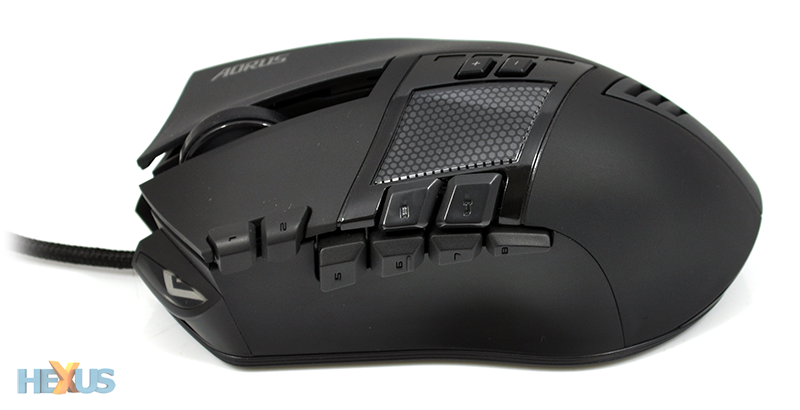
The mouse itself catches you off guard when you first take hold of it. Aorus' promotional images make it look like a chunky piece of kit, but in person it's surprisingly small and light.
Measuring 116mm (L) x 70mm (W) x 44mm (H) in size and tipping the scales at 110g, the Thunder M7 can be described as a nimble gaming mouse that's suited to relatively small hands and a claw-style grip.

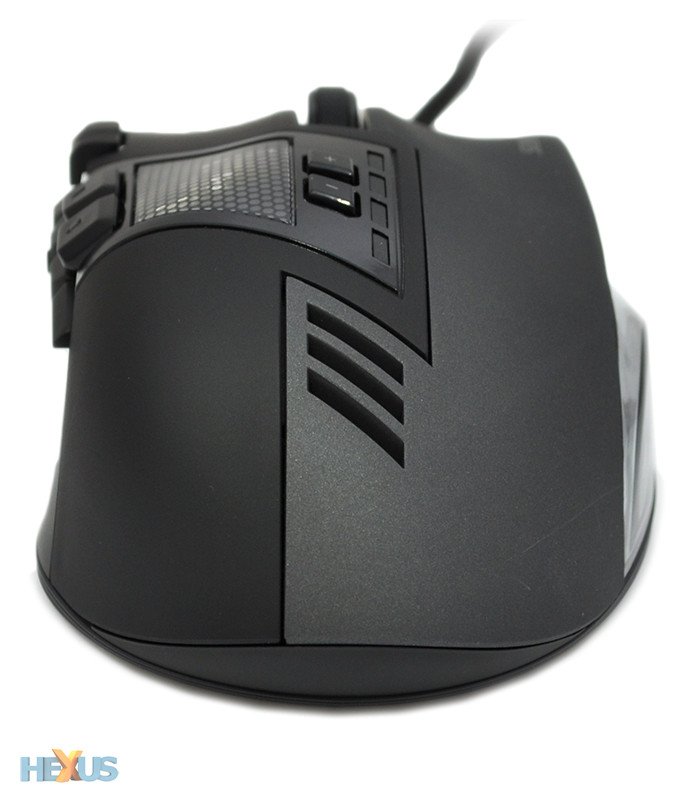
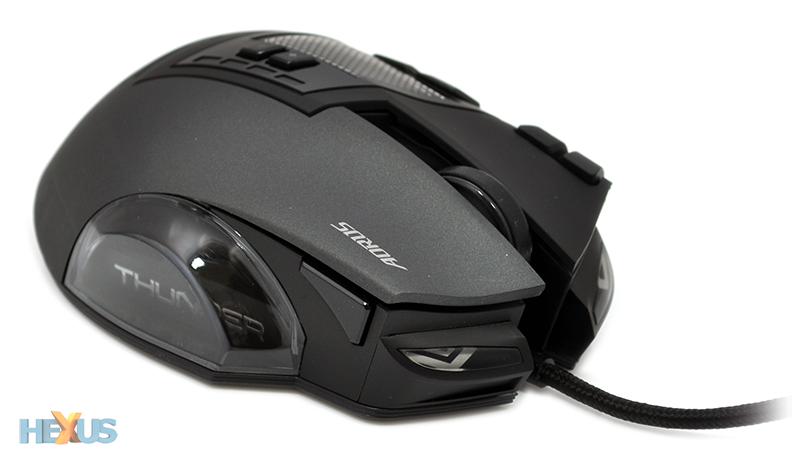
And the design isn't as ostentatious as we'd feared. The two-tone black-and-grey styling works, the matte finish looks smart while providing reasonable grip, there's a small top window that lets you peer into the mouse, and though plastic is the primary build material, the whole unit feels suitably rigid.
This is, however, a gaming mouse first and foremost, and for Aorus that means plenty of LED illumination. A pair of 'headlights' are positioned up front, the scroll wheel is backlit, and if you really pay attention, you can just about make out a backlit Aorus logo on the inside - it's there, but central placement makes it difficult to see from the left-sided window.
Fortunately, for those who are put off by unwanted LEDs, they can be disabled via software - though do be aware each light needs to be turned off manually, as there's currently no all-encompassing override.

Gaming Hardware

Let's talk numbers. The Thunder M7 touts a whopping 16 buttons, these include the usual left- and right-clickers, a clickable scroll wheel, a single button on the right of the mouse that's used to switch between profiles, two small buttons on top to toggle DPI settings, two buttons integrated into the edge of the left-clicker, and finally six more buttons positioned just above the thumb rest.
That's actually 14 by our count, though Aorus classes forward and backward scroll as two further buttons. Both functions are programmable, granted, but it's a little naughty nonetheless - this is, strictly speaking, a 14-button mouse.

Usability and Software

Joining the high button count is an ultra-precise 8,200 DPI sensor, the Avago A9800. Overkill for most gamers? Perhaps, but Aorus' implementation is good - the sensor is partnered with a pair of on-the-fly DPI adjustment buttons that toggle between 800, 1,600, 3,200 and 5,600 modes, and four on-device LEDs make it easy to see exactly where you're at. Not only is this useful for gaming, but on a high-resolution monitor (4K, for example), the heightened DPI can be a godsend when moving around the desktop.
The Thunder M7 looks smarter than anticipated and it has the underlying hardware to suit MMO gamers, but what's it actually like to use? Well, quite good, actually. The mouse does feel comfortable if used with a claw grip - it's too short and stout to be held any other way - and the concave thumb rest on the left is perfectly placed.
The ring finger rests nicely on the right-hand side, and all buttons are easy to navigate. We were worried about button overload, but in use we've been able to hit the right buttons with reasonable speed - there's enough definition between them to be able to do so, though it would have been nice for the left-sided cluster to have been backlit. Nitpicking somewhat, we'd also prefer the DPI toggle switches to be closer to the scrollwheel - they're just a tad too far back for our liking.
Aorus' rubberised scroll wheel is notched and offers good resistance, though it doesn't support horizontal scrolling, so that's something to bear in mind.

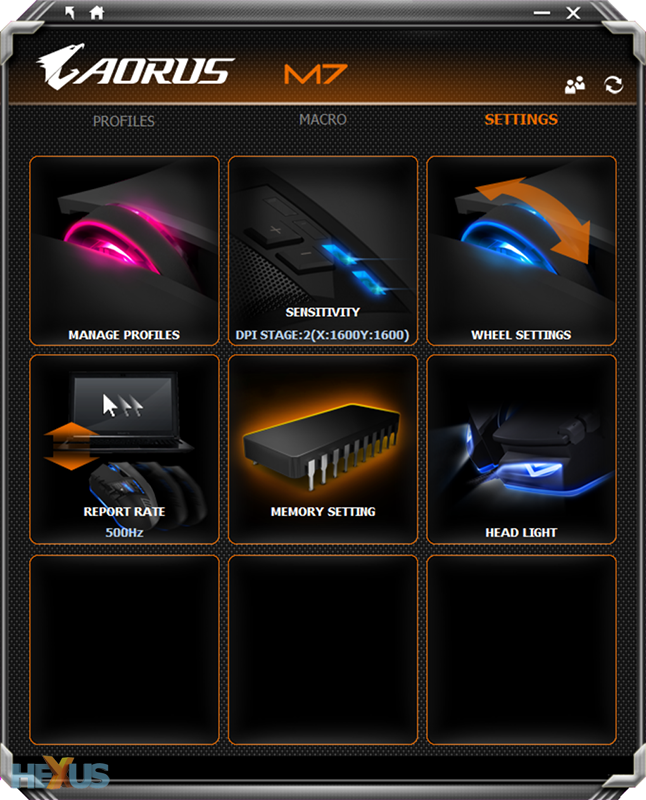
Of course, making the most of the hardware entails loading-up the accompanying software utility. This is entirely optional - the Thunder M7 will happily function as a plug-and-play device - but the lightweight (12.7MB) 'Macro Engine' utility is needed to customise the peripheral's more advanced features.

From within the software, users can re-map all the available buttons and five profiles are available, so you can easily configure unique settings for different games. What's handy is that the profiles are colour-coded and the M7's onboard LEDs reflect the profile currently in use. As you'd expect, there's also a comprehensive macro-recording facility, as well as an option to customise the DPI presets, with per-axis control.
Aorus has almost all the MMO basics covered, but playing it safe the manufacturer has created a very specific solution. The Thunder M7 works really well as a mouse for right-handed MMO gamers with small hands who have a preference for the claw grip. If you want something bigger, an ambidextrous design or perhaps a heavier weight, Aorus doesn't yet have an option, though we suspect it won't be long until size and weight-adjustment mechanisms make their way into the company's expanding product line.

Summary

Aorus is the latest PC hardware manufacturer to enter the burgeoning gaming peripheral market and does so with a premium mouse aimed squarely at MMO gamers. Priced at around the £62 mark, the Thunder M7 faces-off against established competition by touting more than a dozen programmable buttons, dynamic DPI switching and colour-coded profiles backed by a serviceable software utility.
The array of functions all work well, but with no size- or weight-adjustment options, the Thunder M7's appeal is limited to a very specific gamer. Need a lightweight gaming mouse with a high-quality sensor, numerous buttons and a form factor suited to claw-grip use? Then the Thunder M7 should be on your radar.
The Good
Precise 8,200 DPI sensor
14 dedicated buttons
Comfortable for claw-grip use
Dynamic DPI switching with LED status
Two-tone styling looks unique
Bundled carry case
The Bad
No weight adjustment, might be too light for some small profile not ideal for users with big hands
Wheel doesn't support horizontal scrolling